How do I choose the best IDE for Android development?
Feeling stuck between options? How do I choose the best IDE for Android development? Get clear, practical advice to decide with confidence.

Introduction
Why the Choice of IDE Matters?Choosing the right Integrated Development Environment (IDE) can significantly influence your productivity, code quality, and overall experience as an Android developer. An IDE is more than just a text editor; it is the foundation of your development workflow. From writing and debugging code to testing and deploying applications, your IDE directly impacts how efficiently you build Android apps.
A well-suited IDE can streamline repetitive tasks, provide intelligent suggestions, reduce errors, and help you focus on building great user experiences. On the other hand, a poorly matched IDE can slow you down, increase friction, and complicate even simple tasks. That’s why selecting the right one is not just a technical decision; it’s a strategic one.

Understanding What an IDE Does for Android Development
Before choosing the best IDE, it’s important to understand what it actually does and why it matters in Android development.
1. Code Editing and IntelligenceModern IDEs offer advanced code editing capabilities such as syntax highlighting, auto-completion, real-time error detection, and smart refactoring tools. These features improve accuracy and reduce development time.
For Android developers working with Kotlin and Java, intelligent suggestions and quick fixes are especially valuable. A good IDE understands your project structure, detects potential issues early, and suggests improvements while you type.
2. Build Systems and Dependency ManagementAndroid development relies heavily on build automation and dependency management. Most Android projects use Gradle as their build system.
A capable IDE integrates seamlessly with Gradle, allowing you to manage dependencies, configure builds, and run tasks without leaving the development environment. This integration simplifies complex build processes and ensures smoother project management.
Platform Compatibility and System Requirements
Not all IDEs perform equally well on every machine. Some require significant RAM and processing power, while others are lightweight and suitable for lower-end systems.
Before selecting an IDE, evaluate:
- ● Your operating system (Windows, macOS, Linux)
- ● Available RAM and CPU capacity
- ● Storage space
- ● Emulator performance capabilities
For example, Android Studio is powerful but resource-intensive. Developers with limited hardware may prefer lighter alternatives for specific workflows.
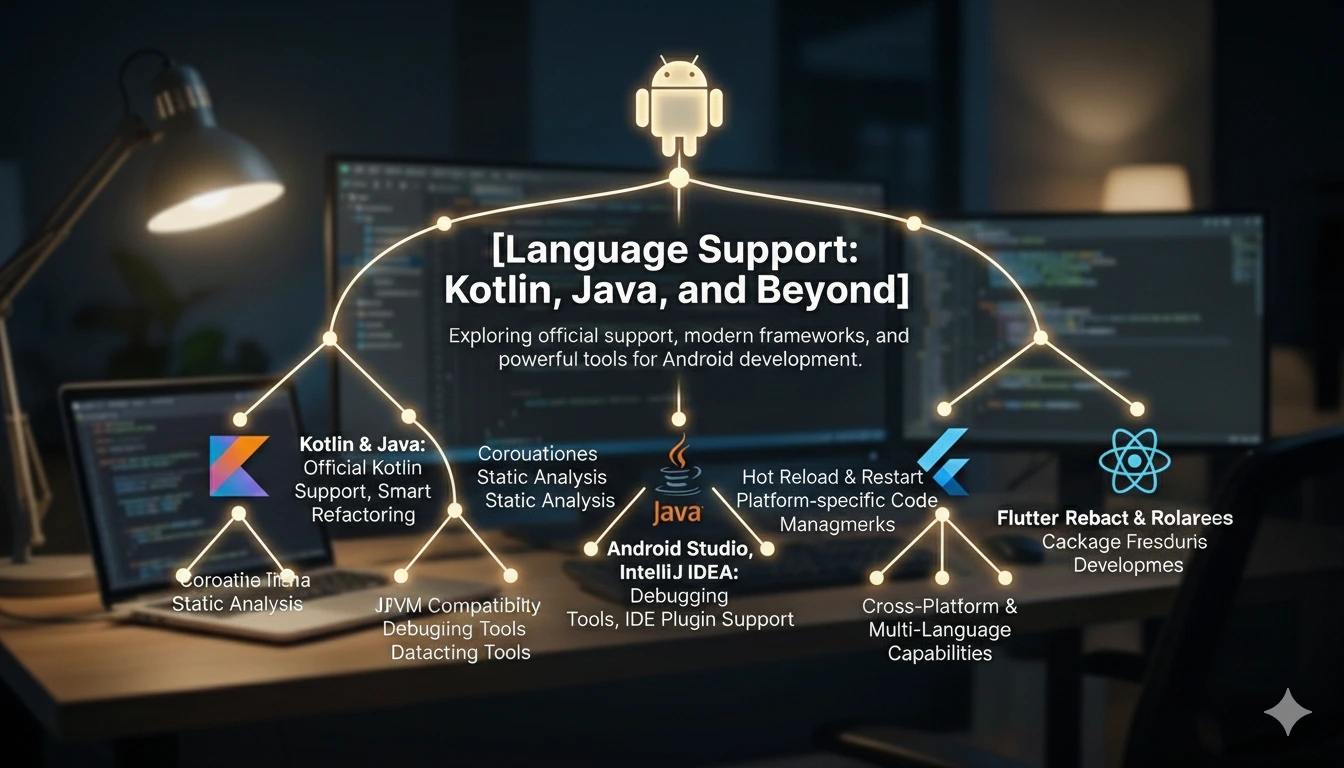
Language Support: Kotlin, Java, and Beyond
Android development primarily revolves around Kotlin and Java. Official support for Kotlin is particularly important since it is now Google’s preferred language for Android.
Android Studio and IntelliJ IDEA provide deep Kotlin integration, smart refactoring tools, and robust debugging features.
If you plan to experiment with cross-platform frameworks or additional languages, consider whether the IDE supports plugins or extensions for technologies like Flutter or React Native.

Debugging, Testing, and Performance Profiling
An IDE should offer built-in debugging tools that help you identify and fix issues quickly. Look for:
- ● Breakpoint debugging
- ● Logcat integration
- ● Memory and CPU profilers
- ● Unit and UI testing support
Strong debugging tools can dramatically reduce troubleshooting time and improve app stability before release.
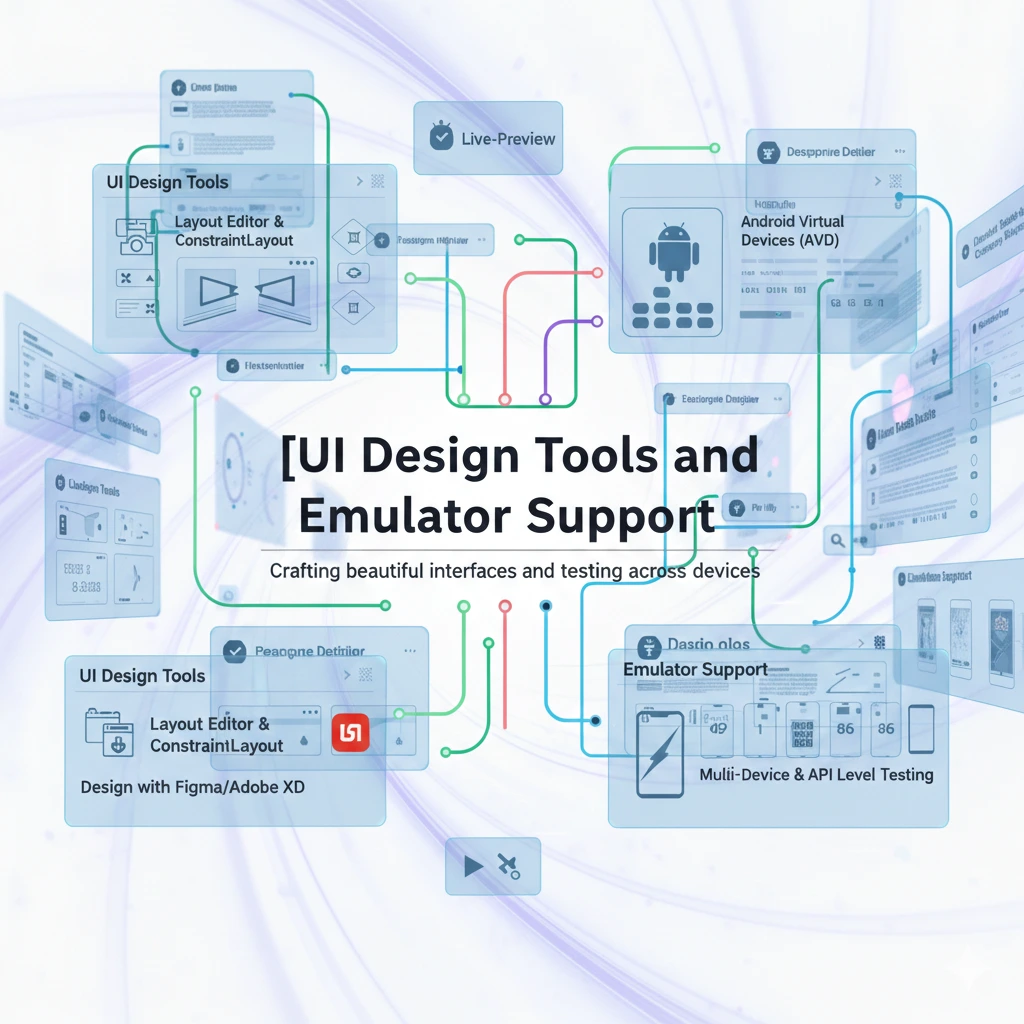
UI Design Tools and Emulator Support
Android development often involves designing responsive user interfaces. A good IDE includes visual layout editors, preview tools, and device simulation support.
Android Studio stands out for its integrated layout editor and built-in emulator, allowing developers to preview apps across different screen sizes and Android versions.
Seamless emulator integration ensures faster testing cycles and fewer deployment errors.

Extensibility Through Plugins and Integrations
No IDE can meet every developer’s needs out of the box. Extensibility through plugins allows customization for:
- ● Code quality tools
- ● Version control systems
- ● Cloud services
- ● Third-party frameworks
For example, Visual Studio Code is known for its lightweight core and extensive marketplace of extensions, making it adaptable to many workflows.

Community, Documentation, and Long-Term Viability
An active community and strong documentation are essential. When you encounter issues, community forums, tutorials, and official guides can save hours of frustration.
Since Android Studio is officially supported by Google, it benefits from continuous updates and long-term ecosystem support.
Choosing an IDE with ongoing development ensures compatibility with new Android SDK releases and emerging tools.
Comparing Popular IDE Options
Let’s examine some of the most commonly used IDEs for Android development.
Android StudioAndroid Studio is the official IDE for Android app development. It provides:
- ● Deep Gradle integration
- ● Advanced profiling tools
- ● Built-in emulator
- ● Visual layout editor
- ● Official SDK support
It is ideal for professional Android development but requires relatively powerful hardware.
IntelliJ IDEAIntelliJ IDEA offers a similar experience since Android Studio is built on it. It provides advanced coding intelligence and is suitable for developers working across multiple JVM-based technologies.
EclipseEclipse IDE was once widely used for Android development. However, its popularity has declined since Android Studio became the official IDE.
Visual Studio CodeVisual Studio Code is lightweight and highly customizable. While not specifically designed for Android, it can support Android workflows through extensions.

Making the Final Decision: Matching the IDE to Your Workflow
There is no universally “best” IDE for Android development. The right choice depends on:
- ● Your experience level
- ● Project complexity
- ● Hardware capabilities
- ● Team collaboration requirements
- ● Personal workflow preferences
If you’re building full-scale Android apps and want official support, Android Studio is typically the safest choice. If you prefer flexibility or work across multiple platforms, IntelliJ IDEA or Visual Studio Code may suit you better.
Test a few options before committing long-term. Your IDE should feel intuitive and efficient, not restrictive.
Frequently Asked Questions
1. What is the best IDE for Android development in 2026?For most developers, Android Studio remains the best choice due to official support, comprehensive tooling, and continuous updates from Google.
2. Is Android Studio mandatory for Android app development?No, it is not strictly mandatory. However, it is strongly recommended because it offers the most complete and optimized environment for Android projects.
3. Which IDE is best for beginners learning Android development?Android Studio is generally best for beginners because most tutorials, courses, and documentation are built around it.
4. Is a lightweight IDE better for Android development?A lightweight IDE like Visual Studio Code may run faster on limited hardware, but it may require additional configuration and extensions.
5. Does IDE choice affect Android app performance?No, the IDE itself does not affect the final app performance. Performance depends on how the code is written and optimized.
6. What system requirements should I consider before choosing an IDE?You should consider RAM (8–16GB recommended for Android Studio), SSD storage, CPU performance, and emulator support capabilities.
7. Can I switch IDEs during an Android project?Yes, since Android projects are typically Gradle-based, you can switch IDEs. However, configuration differences may require adjustments.
8. How important is community support when choosing an Android IDE?Community support is very important. A strong ecosystem ensures faster problem-solving, better documentation, and long-term sustainability.
Conclusion
Choosing the best IDE for Android development is not about picking the most popular tool; it’s about finding the one that fits your workflow, hardware, and long-term goals. Take time to evaluate your needs, experiment with different environments, and choose the platform that helps you write better code with confidence.
Share this article
Ready to Start Your Tech Journey?
Join Code Purple Academy and transform your career with industry-leading courses